How to Duplicate a Project
Site Report Pro allows you to duplicate an existing project so you can reuse its details and settings as the starting point for a new inspection. This is useful when you carry out repeat visits to the same site, or when you want to use a previous project as a template for a similar one. There are three ways to duplicate a project — choose whichever you find most convenient.
Option 1: Press and hold from the Projects list
1 Navigate to the Projects tab
Open Site Report Pro and tap the Projects tab at the bottom of the screen.
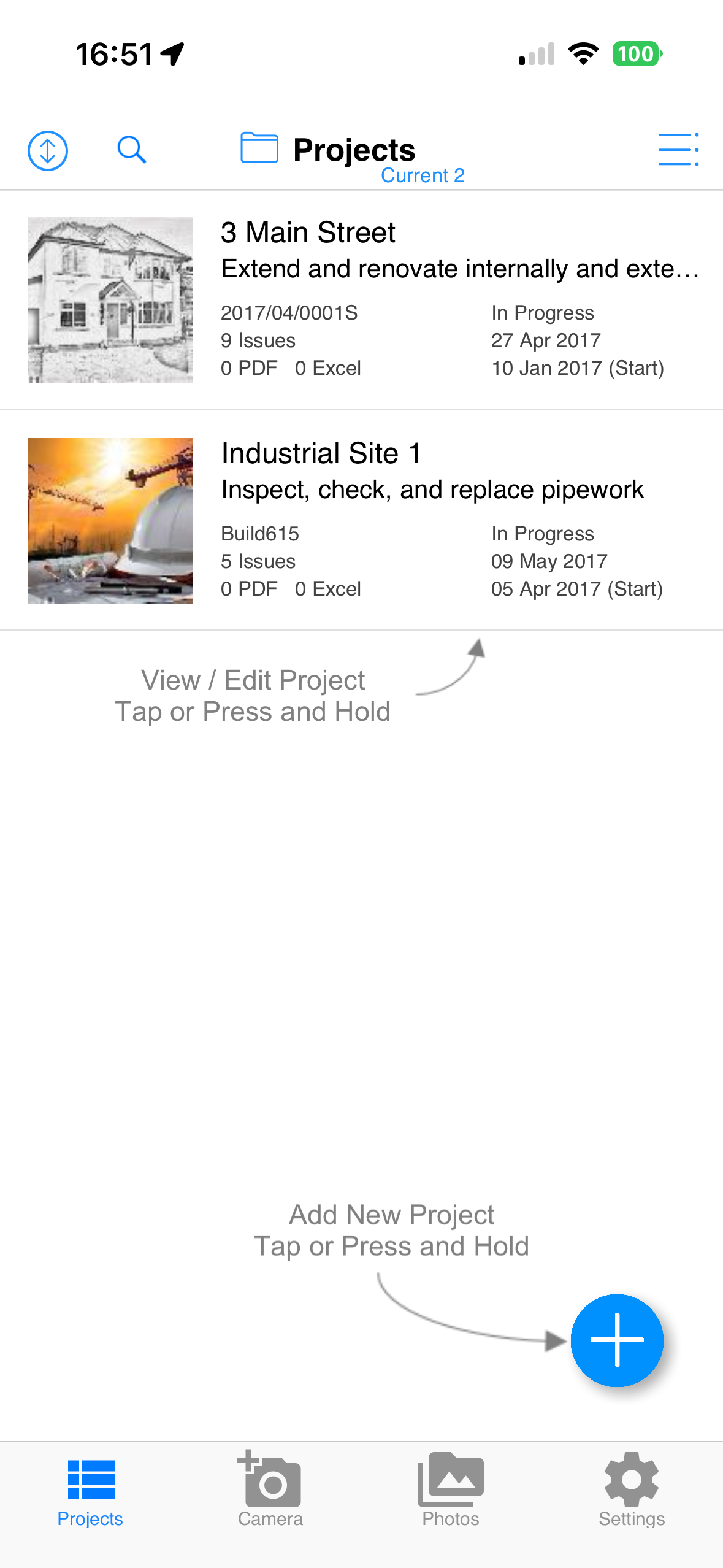
2 Press and hold the project
Press and hold the project you want to duplicate to display the project quick menu.
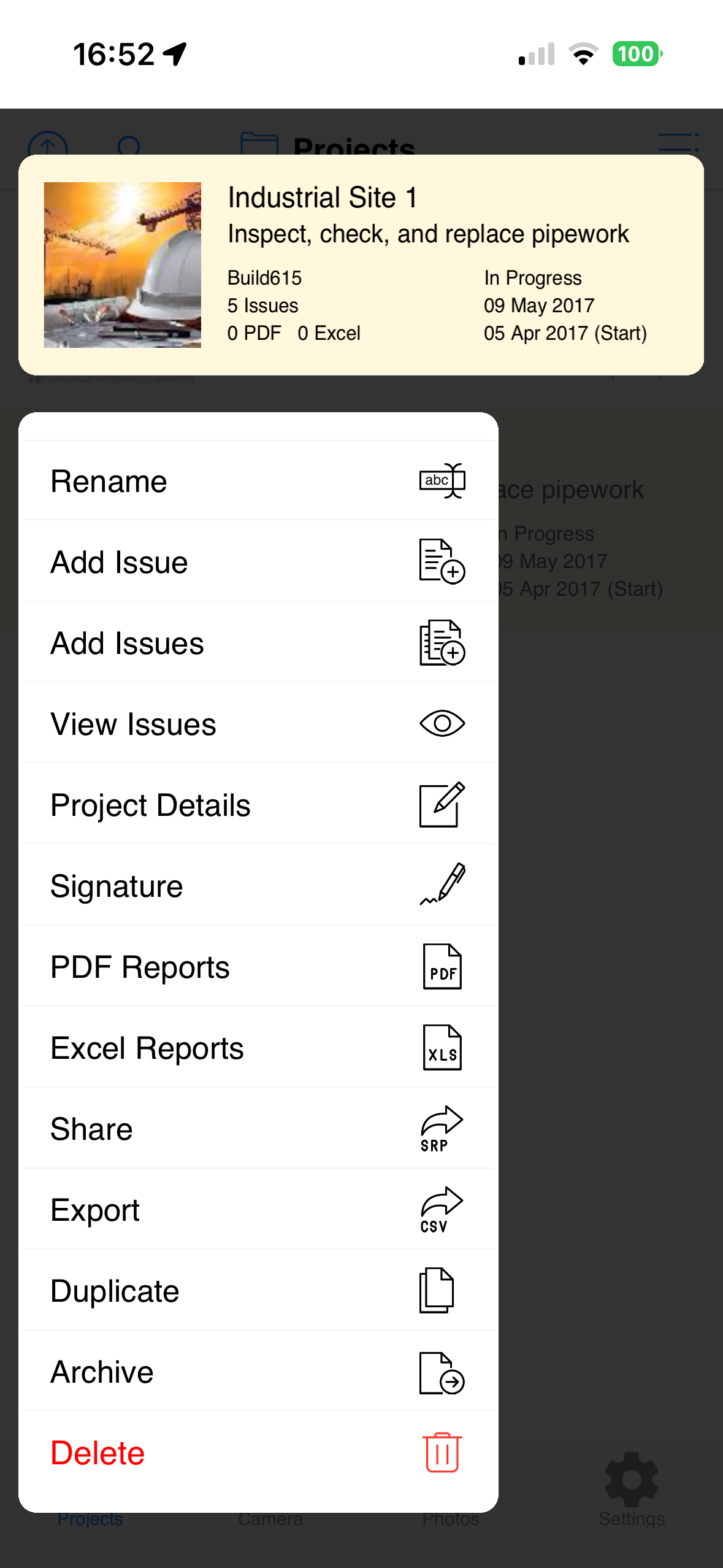
3 Tap Duplicate
Tap the Duplicate option in the quick menu. Site Report Pro will create a copy of the project and add it to your Projects list.
Option 2: Swipe and tap More
1 Swipe and tap More to display the project quick menu
In the Projects tab, swipe right to left across the project you want to duplicate to reveal the project menu, then tap More to display the project quick menu.
2 Tap Duplicate
Tap the Duplicate option in the quick menu to create a copy of the project.
Option 3: From the Project Details screen
1 Open the project
Tap the project in the Projects list to open it.
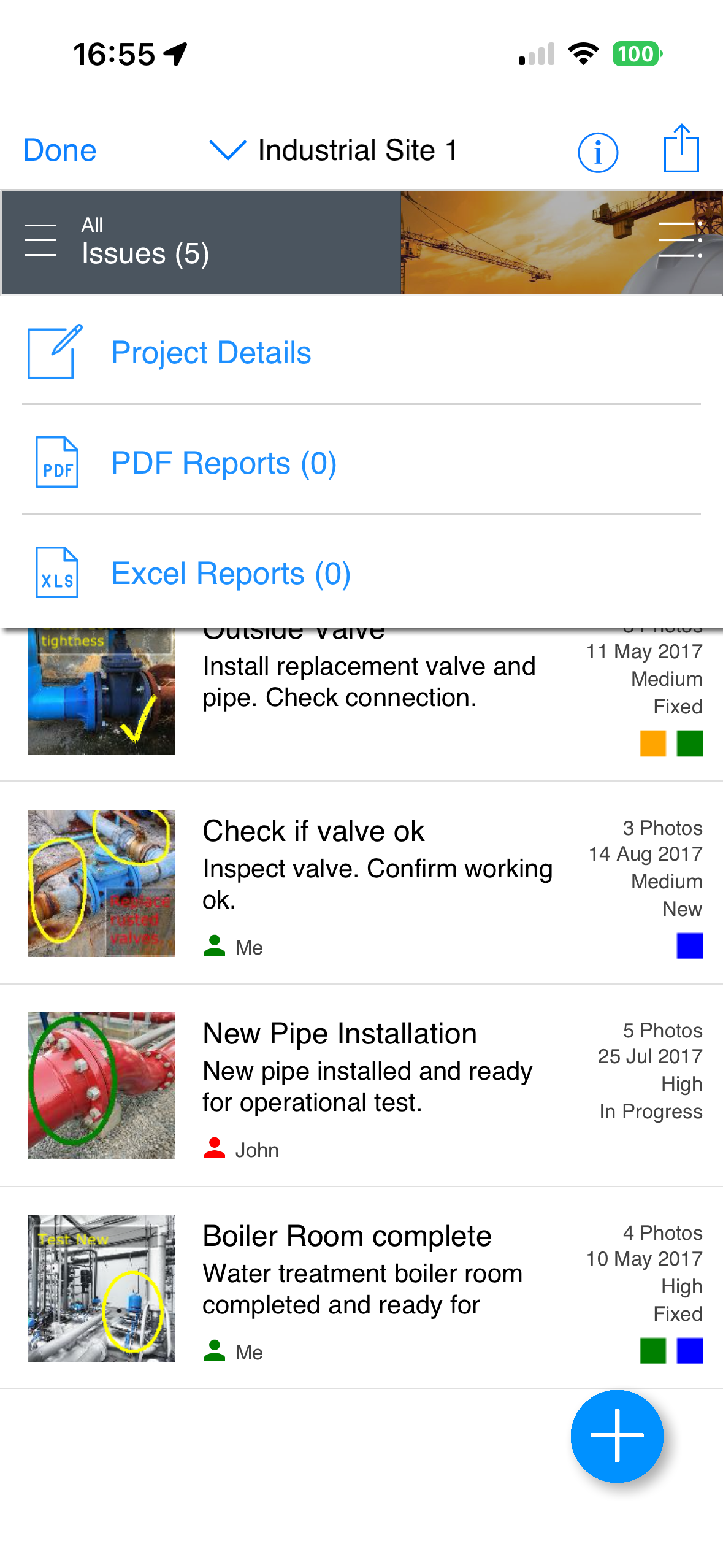
2 Tap Project Details
Tap Project Details, or tap the project name at the top of the screen, to open the Project Details screen.
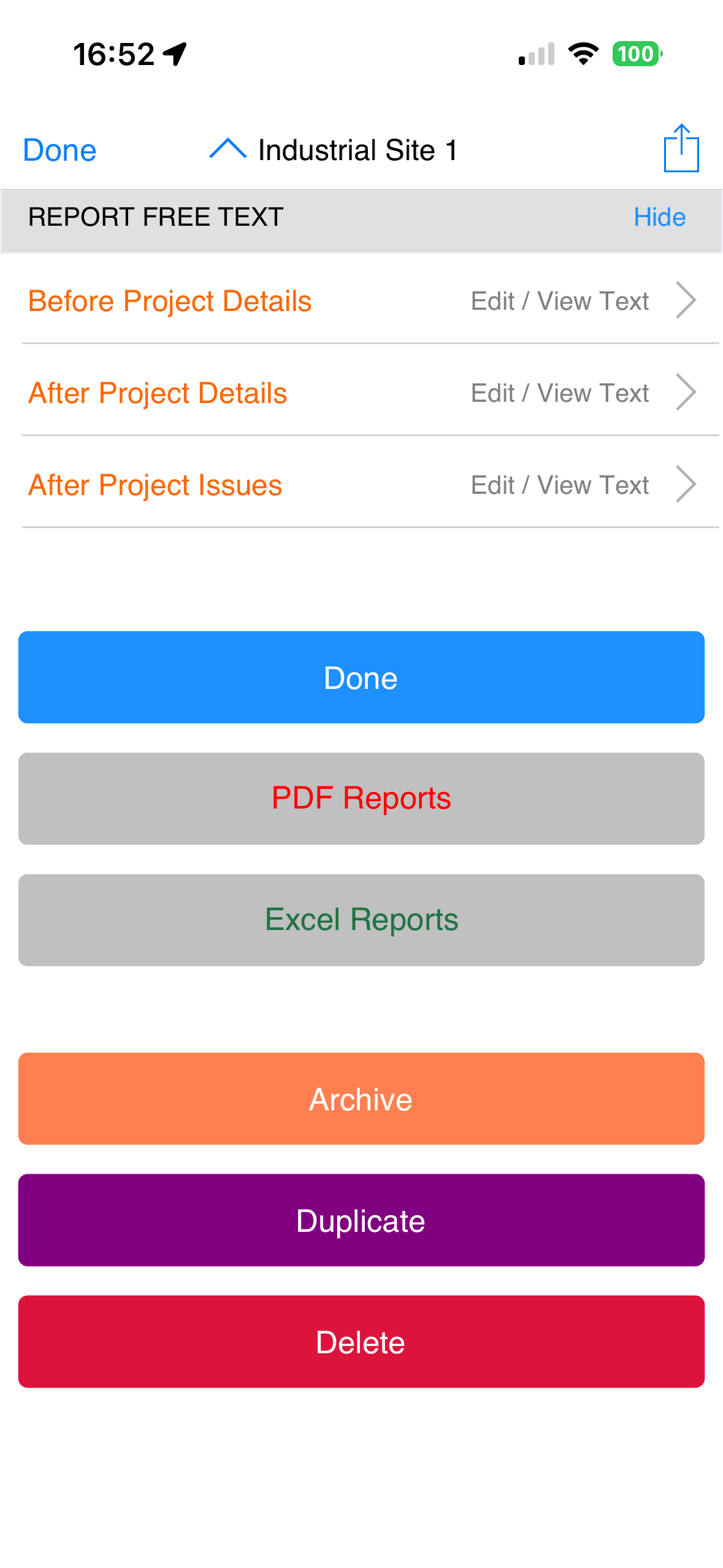
3 Scroll down and tap Duplicate
Scroll down the Project Details screen and tap the purple Duplicate button. Site Report Pro will create a copy of the project and return you to the Projects list.