How to Export or Backup a Project
Export your projects to share with other Site Report Pro users or as a backup.
1 Select the project you want to export
Tap on the project from your projects list.

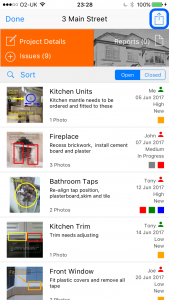
2 Tap the Share button
Tap the Share button to access sharing and export options.
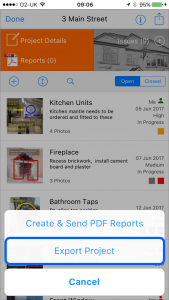
3 Select Export Project
Choose Export Project from the available options.
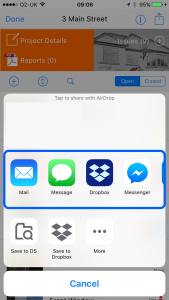
4 Choose your sharing method
Select your preferred sharing method such as email, AirDrop, Messages or other available options.
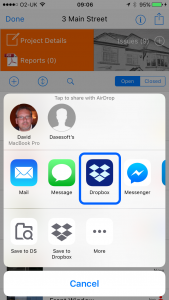
Export to Dropbox
5 Select Save to Dropbox from the share sheet
Choose the Dropbox option from the share sheet.
6 Choose the Dropbox folder and tap Save
Navigate to your desired Dropbox folder and tap Save to upload the project file.
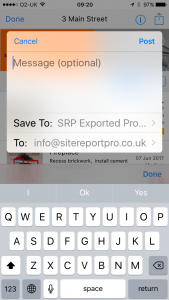
7 The file will be uploaded to your Dropbox
Your project file will be uploaded and available in your Dropbox account.
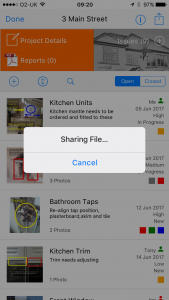
Note: Exported files follow the naming convention 'p1000128.saProject'. When exporting identical projects multiple times to the same Dropbox location, the system adds version numbers. Site Report Pro cannot process modified filenames — you must remove version numbers before re-importing.