How to Import a Project
Import projects that have been shared with you by other Site Report Pro users, or restore from a backup.
Import from Email
1 Open the email containing the project file on your iOS device
Open the email that contains the exported project file attachment.
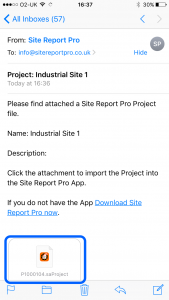
2 Tap the attachment and select Copy to Site Report Pro
Tap the project file attachment and choose Copy to Site Report Pro from the available options.

Import from Dropbox
3 Tap View File in the Dropbox email notification
Open the Dropbox notification email and tap View File.

4 Tap the More button (three dots)
Tap the three-dot menu button to access additional options.
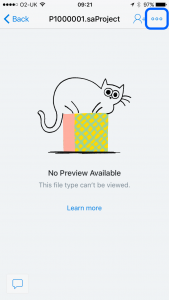
5 Select Export
Choose Export from the menu options.

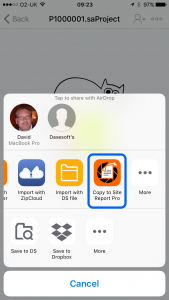
6 Select Open In
Tap Open In to see available apps that can handle the file.

7 Choose Copy to Site Report Pro
Select Copy to Site Report Pro to import the project into the app.
Note: Exported files follow the naming convention 'p1000128.saProject'. If importing from Dropbox and the filename has been modified with version numbers, you must remove the version number and spaces before importing.